# install.packages("pak")
pak::pak("JamesHWade/shinymcp")Turning Shiny Apps into MCP Apps with shinymcp
Shiny
MCP
AI
R
ellmer
shinymcp converts Shiny apps into MCP Apps: interactive UIs that render directly inside AI chat interfaces like Claude Desktop.
Shiny apps live on a server. You visit a URL, you click around, you leave. What if the app could live inside the conversation you’re already having with an AI assistant?
That’s what MCP Apps enable, and shinymcp is how you build them from R.
What’s an MCP App?
The Model Context Protocol is an open standard for connecting AI assistants to external tools and data. MCP servers expose tools that an AI model can call: search a database, run a computation, fetch a file. MCP Apps extend this idea to include a UI. Instead of the model calling a function and getting text back, the user sees an interactive interface rendered directly in the chat.
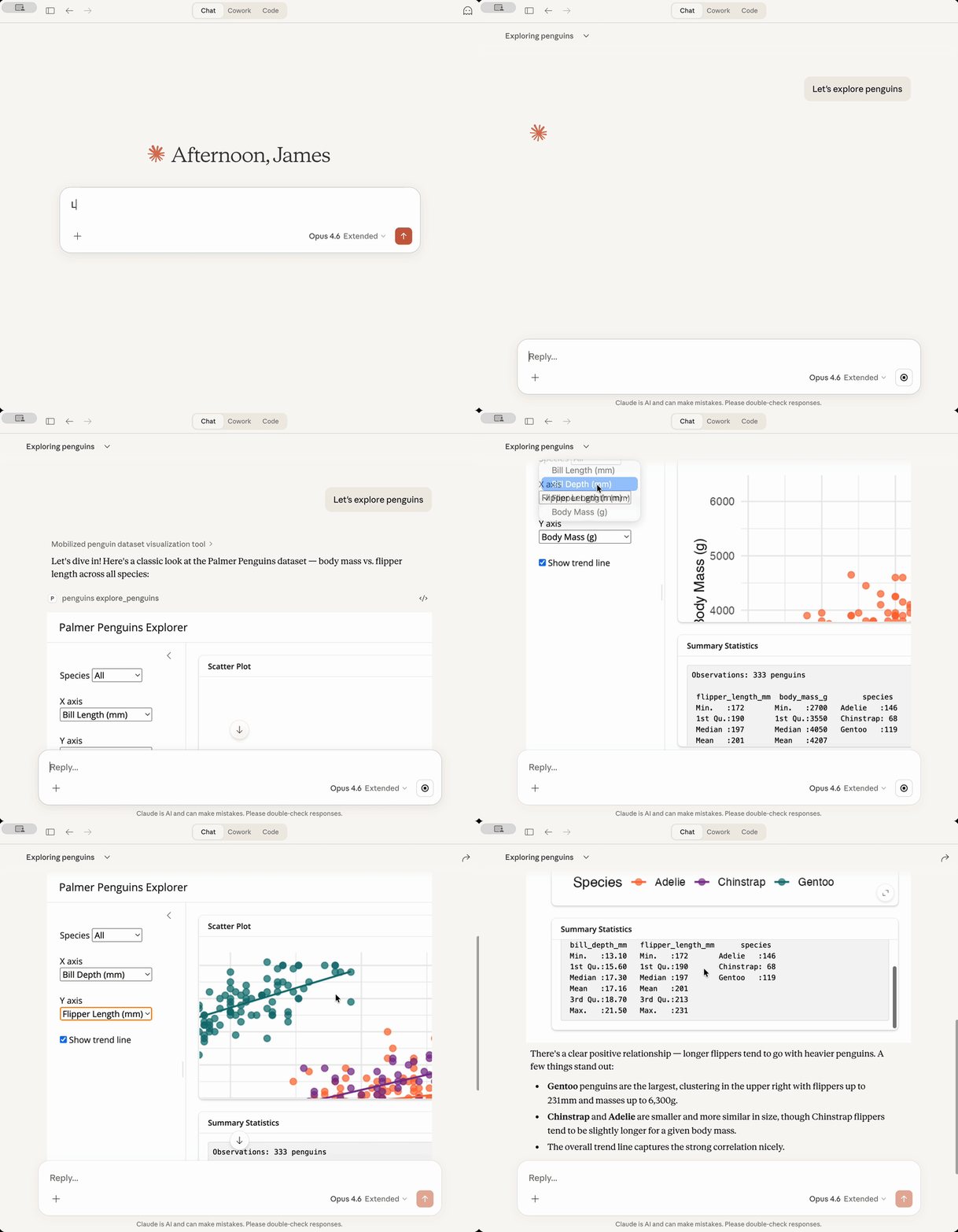
In practice, a Shiny-style dashboard can appear inline in Claude Desktop. The user changes a dropdown, the tool fires, the output updates, all inside the conversation. No separate browser tab, no URL to share, no deployment to manage.
Quick start
Install shinymcp from GitHub:
An MCP App has two parts: UI components that render in the chat, and tools that run R code when inputs change. Here’s a minimal dataset explorer:
library(shinymcp)
library(bslib)

ui <- page_sidebar(
  theme = bs_theme(preset = "shiny"),
  title = "Dataset Explorer",
  sidebar = sidebar(
    shiny::selectInput("dataset", "Choose dataset", c("mtcars", "iris", "pressure"))
  ),
  card(
    card_header("Summary"),
    mcp_text("summary")
  )
)

tools <- list(
  ellmer::tool(
    fun = function(dataset = "mtcars") {
      data <- get(dataset, envir = asNamespace("datasets"))
      paste(capture.output(summary(data)), collapse = "\n")
    },
    name = "get_summary",
    description = "Get summary statistics for the selected dataset",
    arguments = list(
      dataset = ellmer::type_string("Dataset name")
    )
  )
)

app <- mcp_app(ui, tools, name = "dataset-explorer")
serve(app)
Save this as app.R, then register it in your Claude Desktop config:
{
  "mcpServers": {
    "dataset-explorer": {
      "command": "Rscript",
      "args": ["/path/to/app.R"]
    }
  }
}
Restart Claude Desktop and invoke the tool. An interactive UI appears inline in the conversation. Changing the dropdown calls the tool and updates the output without a page reload.
The core idea: flatten your reactive graph
If you’ve built Shiny apps, you think in reactive expressions: inputs feed into reactives, which feed into outputs. In an MCP App, you flatten that graph into tool functions.
Each connected group of inputs, reactives, and outputs becomes a single tool. The tool takes input values as arguments and returns a named list of outputs. Here’s what the translation looks like:
# --- Shiny server ---
server <- function(input, output, session) {
  filtered <- reactive({
    penguins[penguins$species == input$species, ]
  })
  output$scatter <- renderPlot({
    ggplot(filtered(), aes(bill_length_mm, bill_depth_mm)) + geom_point()
  })
  output$stats <- renderPrint({
    summary(filtered())
  })
}

# --- Equivalent MCP App tool ---
ellmer::tool(
  fun = function(species = "Adelie") {
    filtered <- penguins[penguins$species == species, ]

    # Render plot to base64 PNG
    p <- ggplot2::ggplot(filtered, ggplot2::aes(bill_length_mm, bill_depth_mm)) +
      ggplot2::geom_point()
    tmp <- tempfile(fileext = ".png")
    ggplot2::ggsave(tmp, p, width = 7, height = 4, dpi = 144)
    on.exit(unlink(tmp))

    list(
      scatter = base64enc::base64encode(tmp),
      stats = paste(capture.output(summary(filtered)), collapse = "\n")
    )
  },
  name = "explore",
  description = "Filter and visualize penguins",
  arguments = list(
    species = ellmer::type_string("Penguin species")
  )
)
The return keys (scatter, stats) must match the output IDs in the UI (mcp_plot("scatter"), mcp_text("stats")). The bridge routes each value to the right element.
How the bridge works
MCP Apps render inside sandboxed iframes in the AI chat interface. A lightweight JavaScript bridge (no npm dependencies) handles the communication:
- User changes an input
- The bridge detects which form elements are inputs (by matching tool argument names to element
idattributes) and collects their values - Bridge sends a
tools/callrequest to the host viapostMessage - Host proxies the call to the MCP server (your R process)
- R tool function runs and returns results
- Bridge updates the output elements
The input auto-detection is the key convenience. If your selectInput has id = "species" and your tool has an argument called species, the bridge wires them together automatically. For edge cases where ids don’t match argument names, mcp_input() lets you explicitly mark an element.
Automatic conversion
If you have an existing Shiny app you want to convert, shinymcp includes a parse-analyze-generate pipeline:
convert_app("path/to/my-shiny-app")This parses the UI and server code, maps the reactive dependency graph into tool groups, and writes a working MCP App with tools, components, and a server entrypoint. The generated tool bodies contain placeholders for the computation logic.
For complex apps with dynamic UI, modules, or file uploads, shinymcp also ships a deputy skill that guides an AI agent through the conversion process.
Output components
shinymcp provides output components that correspond to standard Shiny outputs:
| Shiny | shinymcp | What the tool returns |
|---|---|---|
textOutput() |
mcp_text() |
Plain text string |
plotOutput() |
mcp_plot() |
Base64-encoded PNG |
tableOutput() |
mcp_table() |
HTML table string |
htmlOutput() |
mcp_html() |
Raw HTML |
For inputs, you use the standard shiny and bslib inputs you already know: selectInput, numericInput, checkboxInput, etc. The bridge auto-detects them.
Why this matters
The interesting part isn’t the technology. It’s the interaction pattern. When a Shiny app lives inside a chat, the AI can see and respond to what the user is doing in the app. The model has context about both the conversation and the interactive exploration.
I’m still early in figuring out what this enables. If you build something with it, I’d like to hear about it.
Resources
- shinymcp on GitHub
- shinymcp documentation
- ellmer, the LLM framework shinymcp builds on
- MCP specification
- bslib, Bootstrap layout and theming for the UI